How to Change the Language of Studio Outputs
Changing language of outputs in Memo
Written By Jason From Memo
Last updated 8 months ago
Your output language is shared across Studio and Copilot Chat. When you change it in one place, it becomes your active language everywhere.
What this affects
This language setting is used for Studio outputs, including:
Flashcards
Notes
Mind Map
Track
Tutor
Podcast
Infographic
Practice Tests
Chat responses
Option 1: Change language from a Studio customize modal (pencil icon)
Use this when generating Flashcards, Notes, Practice Test, Mind Map, Track, Infographic, or Podcast.
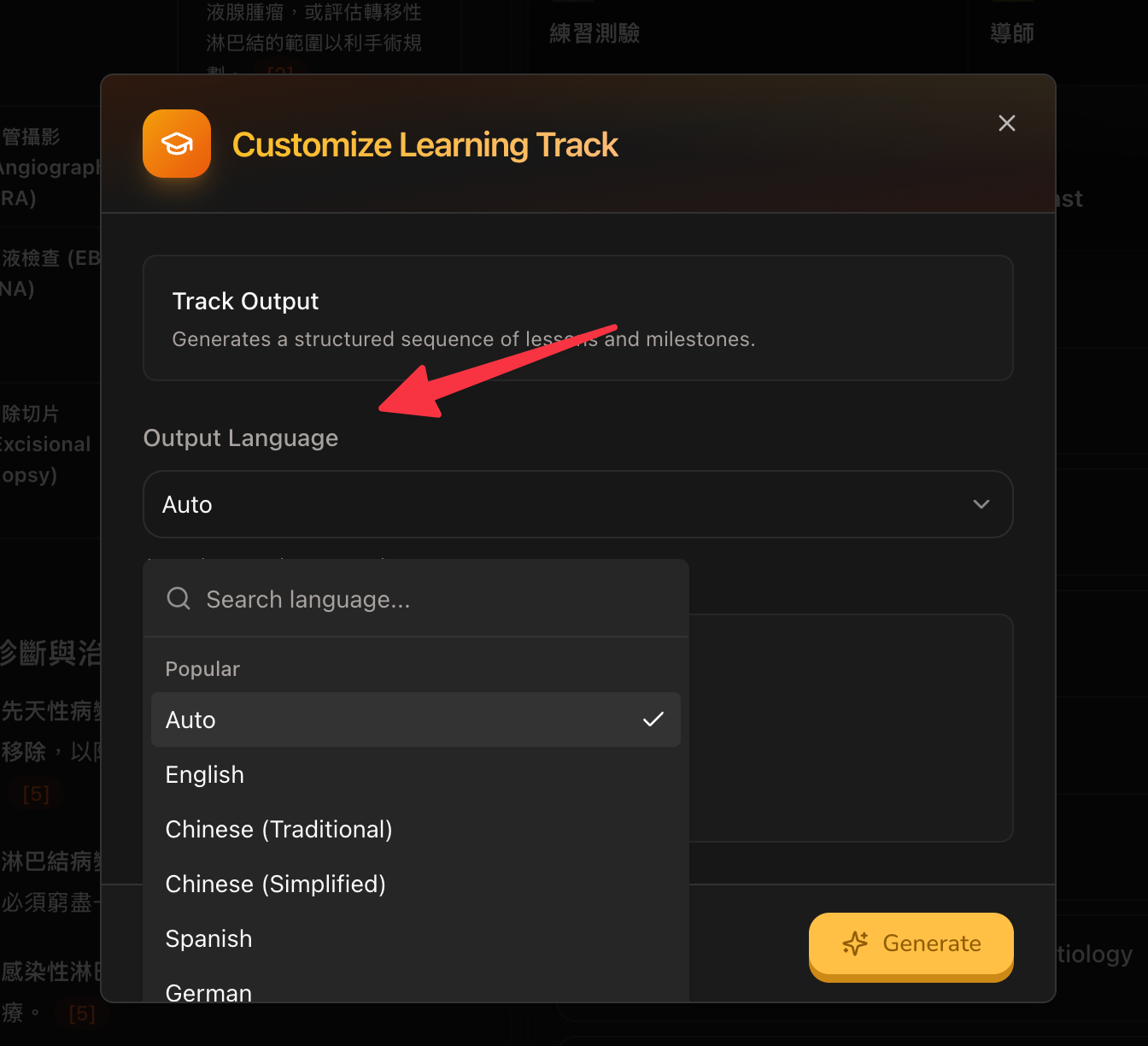
Open your deck in Studio.
Click the pencil (Customize) icon on an output tile.
Find Output Language.
Select your language (or keep Auto).
Generate your output.
Important:
The change is applied globally as soon as you select it (not only after clicking Generate).
Auto means Memo will follow the source language.
Option 2: Change language from Copilot Chat
You can set the same shared language from Copilot Chat.
Open Copilot Chat.
If the language dropdown is visible, select it directly.
On compact/mobile layouts, tap + and choose language there.
This updates the same global output language used by Studio.
Option 3: Change language from Settings (global default)
Go to Settings → Configuration → General.
Change Language.
Click Save.
This updates your universal default language for Studio and Copilot.
Tutor-specific note
Tutor uses the same global language as the starting language.
The Tutor customize modal does not currently include an Output Language field.
Inside voice Tutor, users can change language in-session from the Tutor top bar. That in-session selection is session-level and does not currently write back to the global output-language setting.
FAQ
Does changing language translate existing outputs automatically?
No. Existing generated outputs stay as-is. Regenerate to get content in the new language.
Which setting wins if multiple values exist?
Memo resolves language in this order: explicit request language, then saved Settings language, then Auto.
Still need help? Ask the team