Split PDF Pages for Uploading
How to split PDF page ranges when uploading PDFs to Memo
Written By Jason From Memo
Last updated 7 months ago
Upload only the pages you need from a PDF before processing.
In Memo v8 and beyond, you can split a PDF during upload so your deck only uses selected pages.
How to split pages
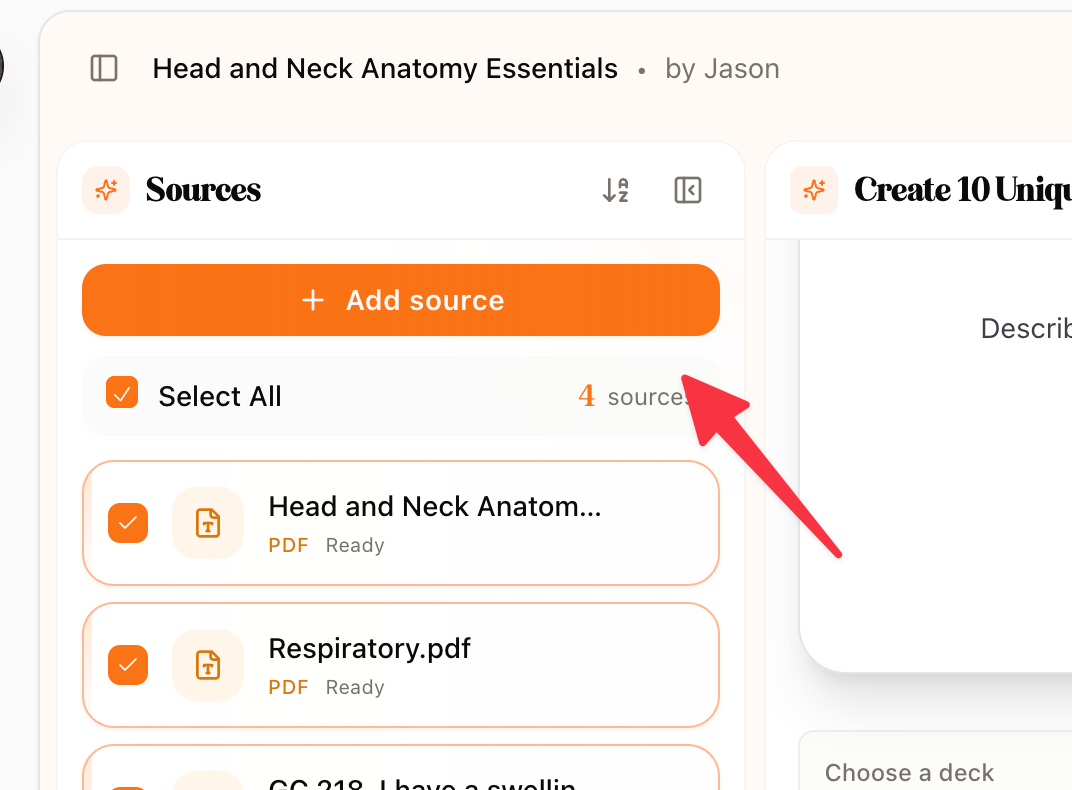
Open your deck and go to the Sources panel.
Click Add source.
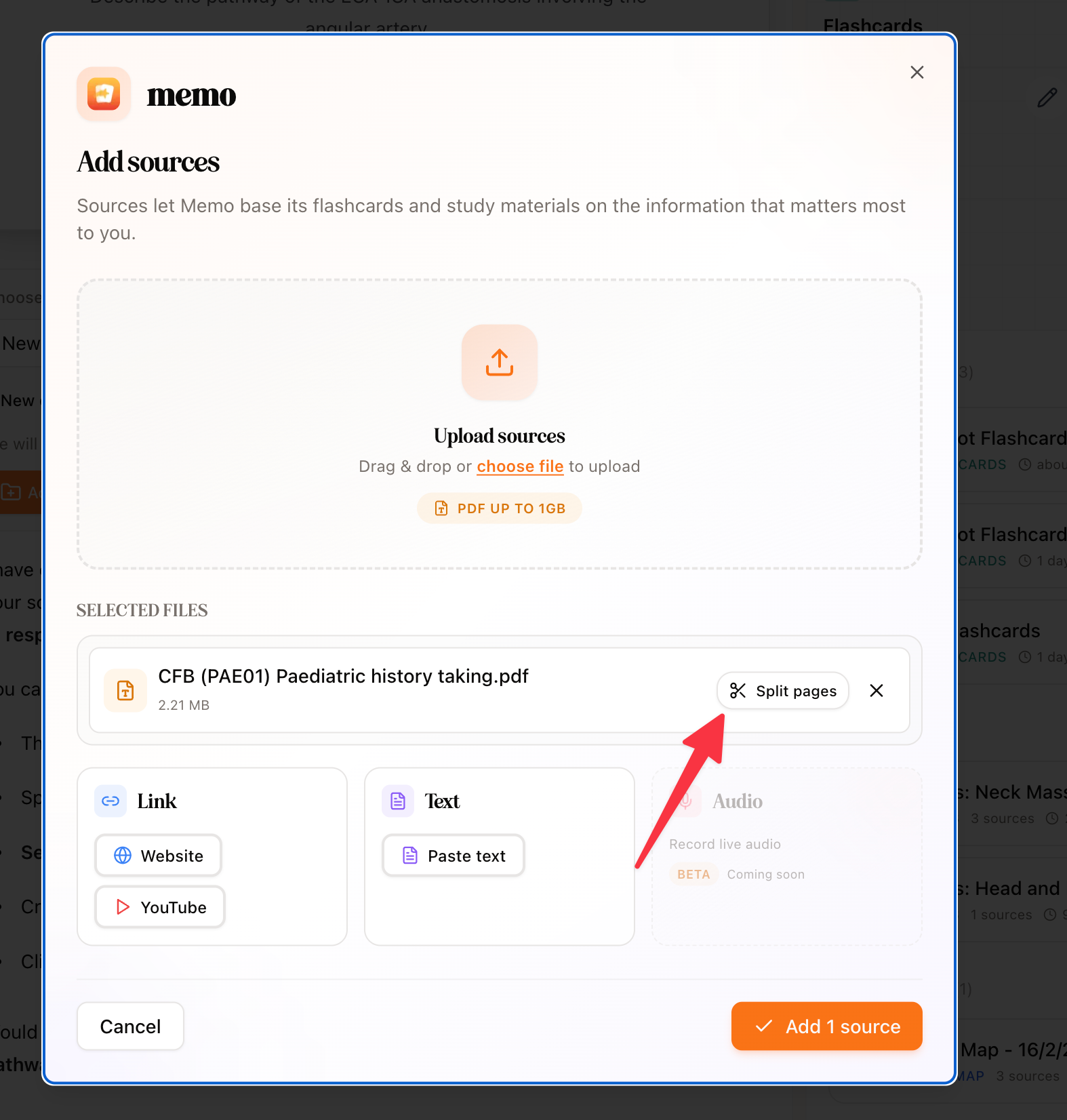
Upload your PDF (drag/drop or choose file).
In Selected files, click Split pages next to the PDF.
Choose pages:
Click page thumbnails to select/deselect.
Use Start + End and click Select range for a continuous range.
Use Shift + click to quickly select a range.
Click Apply page split.
Click Add 1 source (or Add X sources).
What happens in v8 and beyond
Only the selected pages are uploaded and processed.
If all pages are selected, Memo uploads the original PDF unchanged.
Page order is preserved (ascending order).
You can set different split selections for multiple PDFs in the same upload session.
Troubleshooting
No “Split pages” button?
Make sure you uploaded a PDF and it appears in the Selected files list.“Apply page split” is disabled?
Select at least one page.Range error?
Start/end must be whole numbers within the document page count.Upload stuck on “Preparing split file…”?
Wait for local split prep to finish, especially for large PDFs.