Recreate the Classic Layout in Memo V8
If you prefer the older Memo workflow, you can quickly set up a V7-style experience in V8. There is no separate “switch to V7” mode, but the same layout can be recreated with panel and view controls.
Written By Jason From Memo
Last updated 7 months ago
What you’ll get
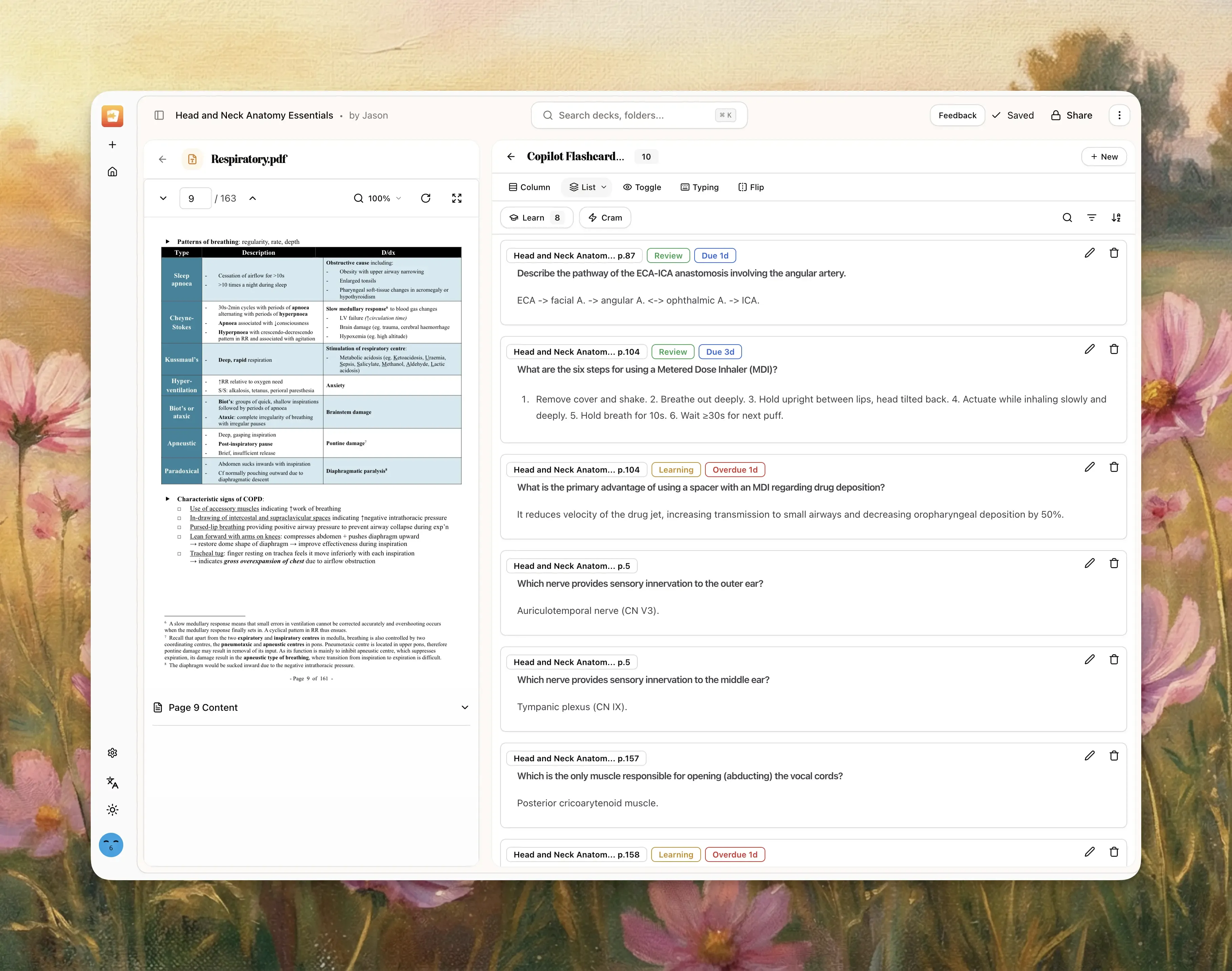
A 2-panel deck workspace (Source viewer + Flashcards)
Classic flashcard browsing style (Column or List)
Dashboard deck list view (instead of notebook card view)
Applies to
Desktop web app (recommended)
Desktop app
Mobile is different (tab-based, not full multi-panel desktop layout)
Part 1: Change deck view from 3 panels to 2 panels
Open any deck on desktop.
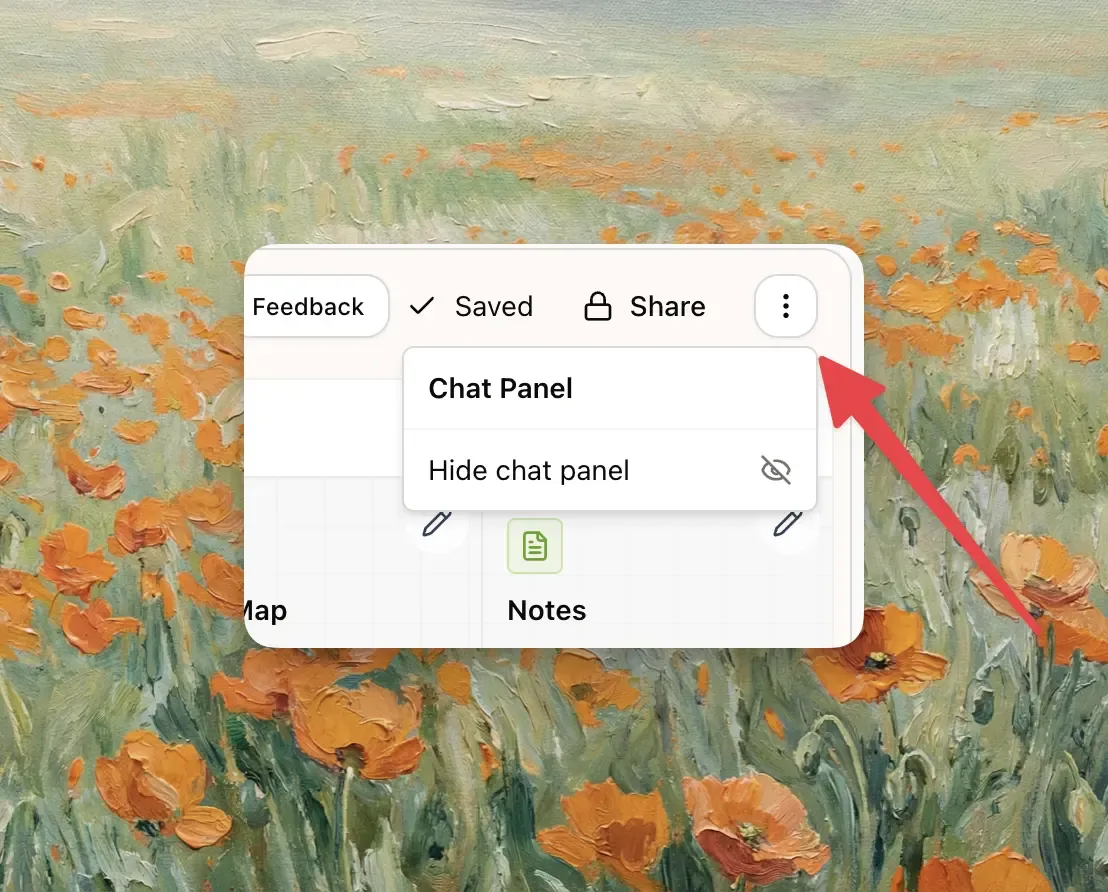
In the top-right toolbar, click the
⋮menu.Under Chat Panel, click Hide chat panel.
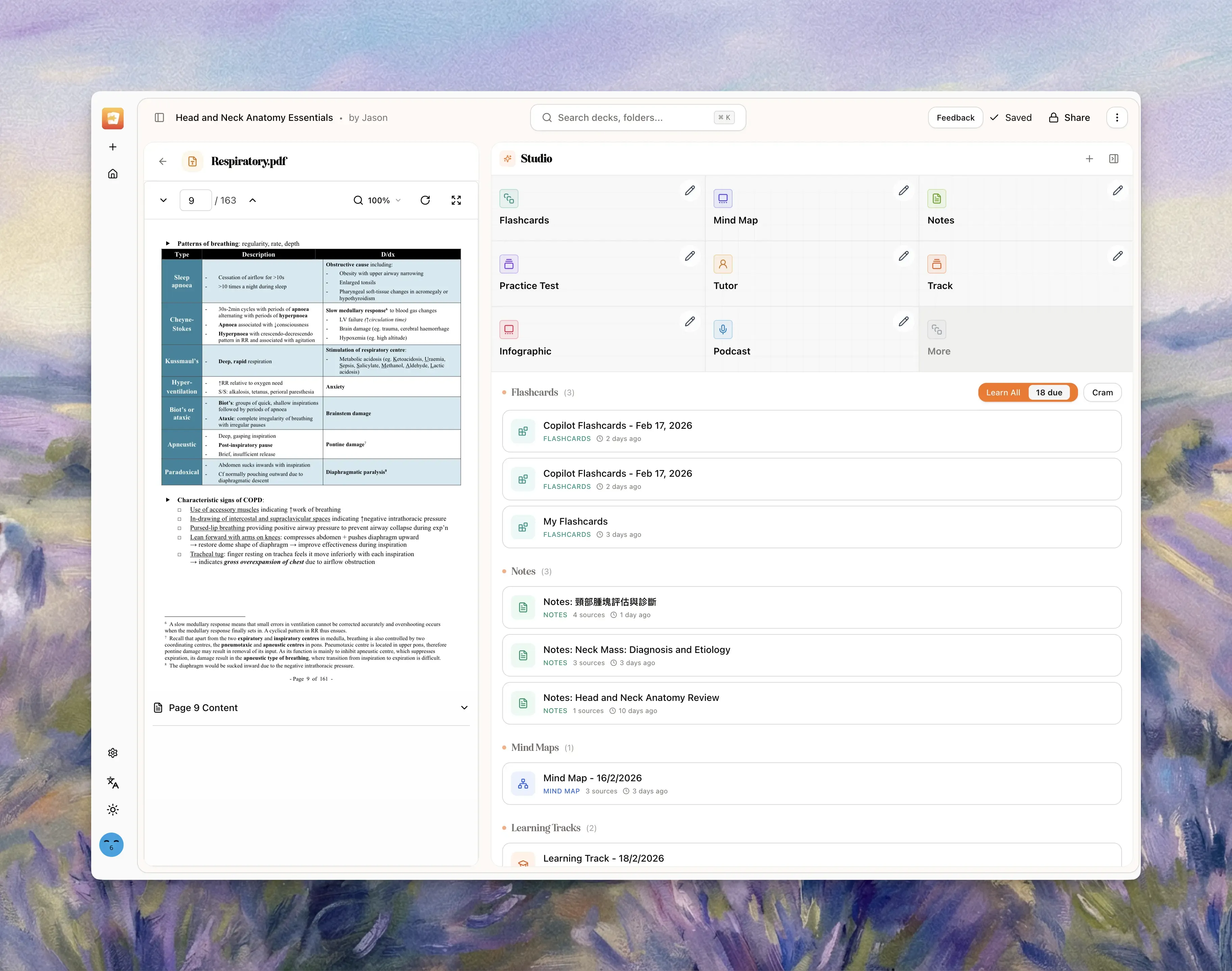
Confirm Sources is visible on the left.
Confirm Studio is visible on the right.
If one side is hidden:
Click Expand sources panel (left control) to restore Sources.
Click Expand studio panel (right control) to restore Studio.
Part 2: Bring back the source viewer (PDF/content panel)
In the Sources panel, click a completed source.
Memo opens inline viewer mode inside the left panel.
For PDFs, the PDF viewer appears there.
Use Back to sources to return to source list.
Note:
Only completed sources can be opened in viewer mode.
Part 3: Get the old-style flashcard view
In Studio, click a flashcard set.
This opens flashcard list/edit mode in the right panel.
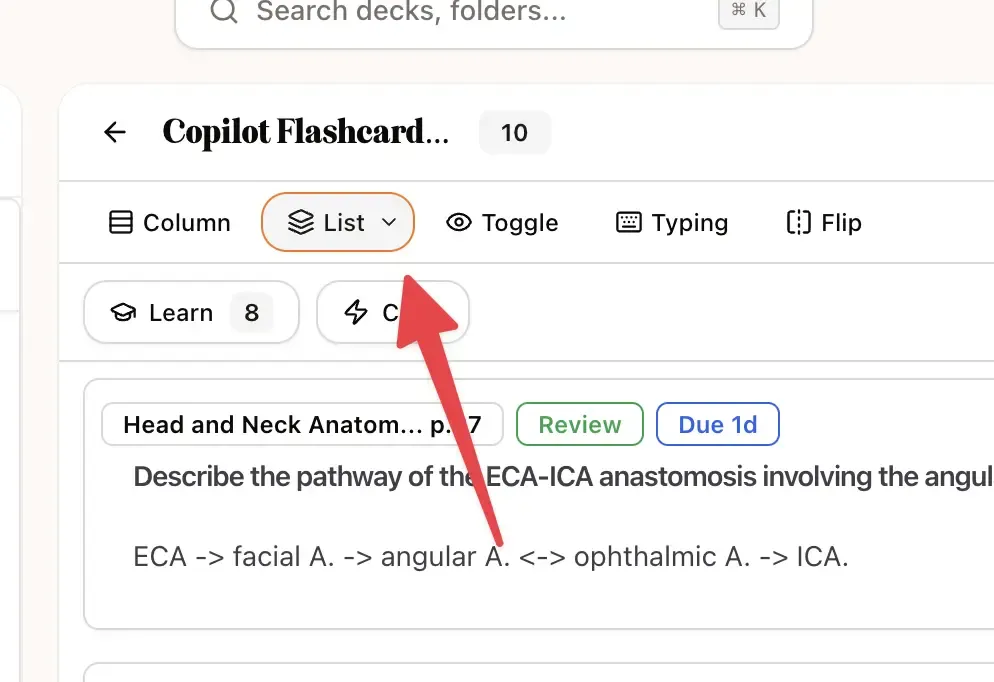
At the top of flashcard view, choose your style:
Select Column for a classic list-like flow.
Select List for denser row-style browsing.
Other available modes are Toggle, Typing, and Flip, but Column/List feel closest to V7.
Part 4: Resize panels like old workflow
Hover between panels until the resize handle appears.
Drag to adjust panel widths.
Set the source viewer wider if you want a PDF-first workflow.
Set flashcards wider if you want card-first editing/review.
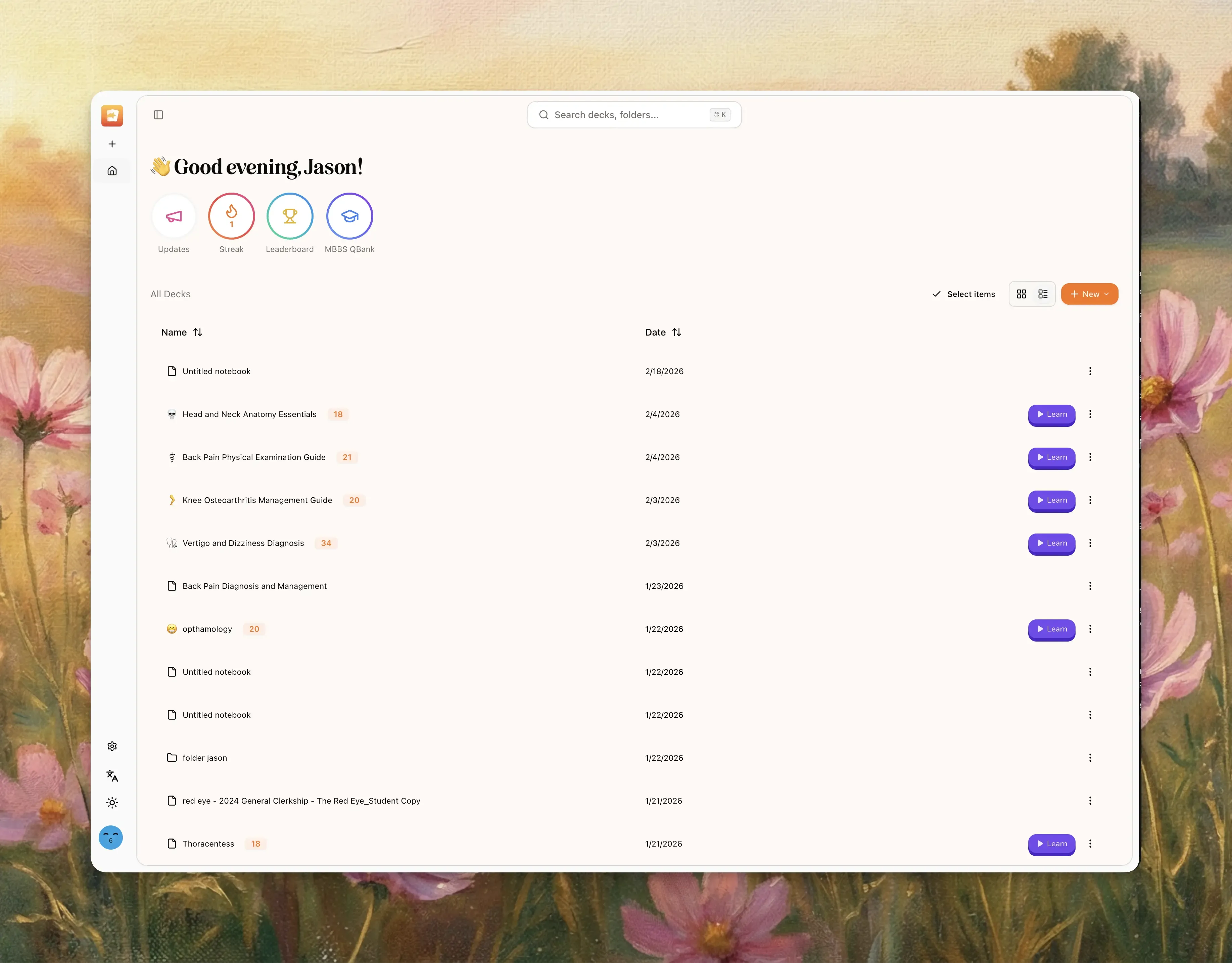
Part 5: Switch dashboard back to old list view
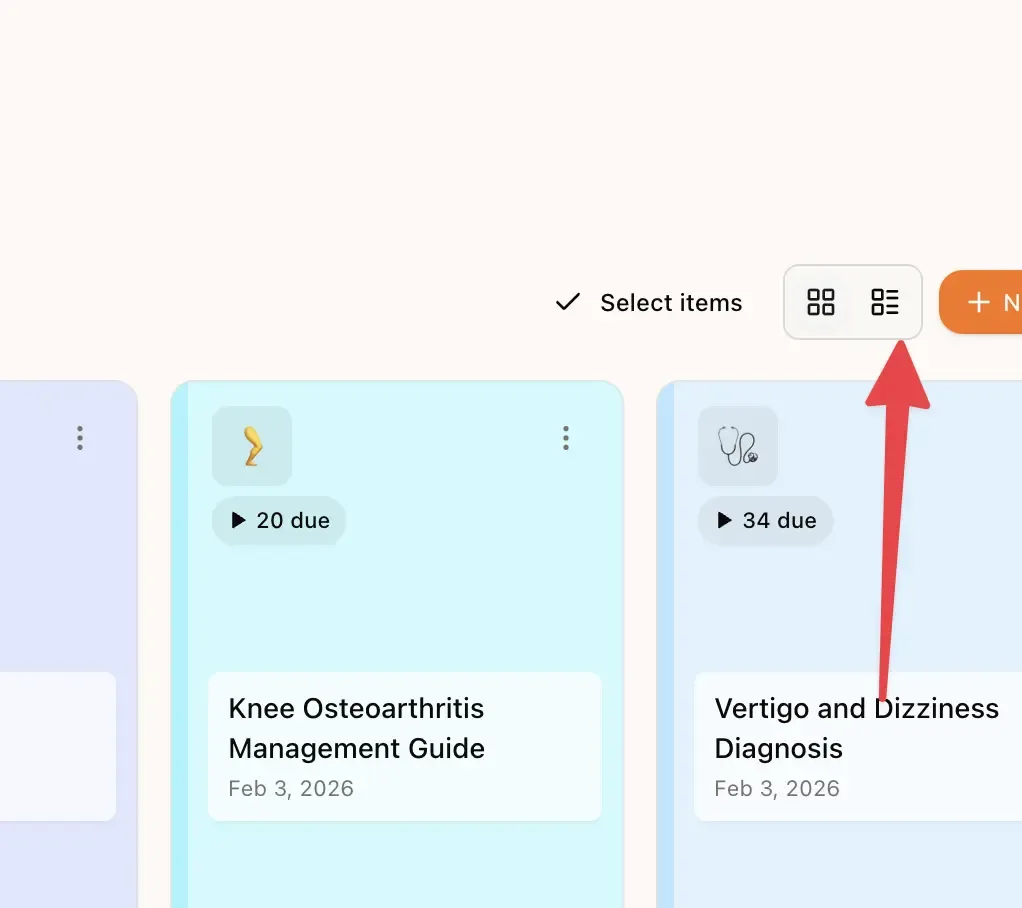
Go to Dashboard.
In the top-right controls near Select items, find the 2-icon view toggle.
Click the List icon to switch from notebook cards to list rows.
Click the grid/card icon anytime to switch back.
Note:
This is an icon toggle, not a “View Options” dropdown.
What Memo remembers automatically
Chat panel shown/hidden state is saved per deck.
Sources/Studio expanded state is saved per deck.
Deck panel widths are saved per deck.
Flashcard display mode (
Column,List, etc.) is saved per deck.Dashboard
CardvsListpreference is persisted across sessions.
Troubleshooting
I can’t find “Hide chat panel”
Use desktop width and open a deck. It lives in the top-right ⋮ menu under Chat Panel.
I hid chat but still don’t see source viewer
The Sources panel may be collapsed. Click Expand sources panel.
Source doesn’t open in viewer
The source is likely still processing. Open it after status is completed.
I switched to list once, then it changed later
Check if you changed decks or browser profile. Layout and view preferences are persisted by deck/session context.